
How to Use Green Screen in KineMaster? (Unlocked Advanced chroma Key)
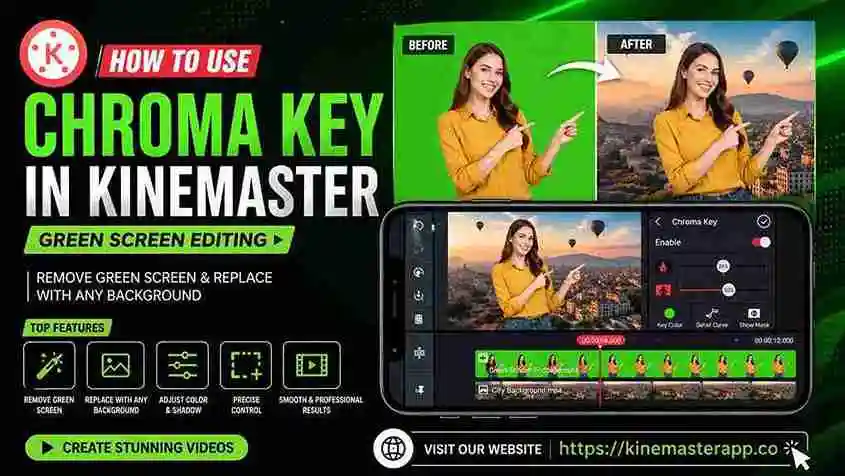
Green screen or Chroma key is an advanced visual effect of Kinemaster. It is mostly used in movies. If you want to remove a special part of the video from the movies, then this is the best option. You can also change the video’s background to match your chosen image or video.
This technology is mostly used in making TV shows and movies. Mostly, after this, they can remove the background as needed.
What is the chroma key (green screen)?
Chroma key is also called green screen, which means you can remove the background color with a special image or video. Mostly, people use green or blue green screens because they can be cleared due to the opposite tone. So your original background video becomes transparent.
After removing the background of the video or image, you can replace it with your desired image or video. I asked you to always prefer a wrinkle-free background.
Mostly chroma key is used in movies. Actors record their scenes in front of a green or blue screen later they can change it with special content.
Choosing the Key Color
First thing is to choose a color in a video that you want to remove. Most people choose a green or blue background, but I asked you to always choose the background wisely, according to the content.
Now import the project into Kinemaster. Then select the layer on which you want to work. Click on the FX effects option the editing options will appear.
Now select the eyedropper or color picker option and select the color that you want to remove from the video. After selecting a color, it will be removed from the background.
Preparing the Video or Image layers
Now you will select the background according to your choice. Then import the video on which you want to work. After this new layer appears on the timeline above the green screen video.
When you upload the background image or video, then adjust it with the content. I asked you to mostly see the edges or corners, and adjust them perfectly. Now your video has become fully professional.
Applying The Green screen effect
After applying this, go to the chroma key layer setting. After opening the green screen setting, check the preview of the image or video that you want.
If the video is clear, that’s good. Check the corner carefully if there is a green corner, this situation is called fringing. Then, solving this issue with the help of the tolerance slider is the best option.
Adjusting Key Settings
There are many advanced filters thats helps to make your video cleaner and clearer.
- Spill Removal: Using these features, you can remove green or blue reflections that appear on objects or persons.
- Matee: This tool helps to clear your corners or edges.
- Alpha tolerance: This tool helps to remove green lines that are on the corners of the video display.
- Gamma: This tool is awesome, it helps to adjust the brightness or color of the object against the background.
Fine-Tuning the Key
Fine-Tuning the Key
Sometimes, when you have a project and apply green screen, lightning may cause issues with the green screen or transparent background.
These are some tips to improve your project:
- You can manually remove spots that are not automatically removed.
- Apply the best color effects that are in line with the object and background.
- Use the crop tool if the edges are causing issues.
In the end Zoom on the object and on the edges, and adjust the edges so that your object gives a clear look.
Troubleshooting common issues
There are some common issues facing in Kinemaster with solutions.
Fuzzy edges/Fringing: If you are content that edges remain blurry, then increase tolerance and use the erode function to clear corners.
Green spill on object: If there is any green spill on the object, then use the remove spill option and use the gamma option to clear it.
White/Gray Areas: If you are in white or gray areas on the object or screen, then use low alpha tolerance or increase the strength to clear it.
Grainy Background: If you are facing a noisy background, then apply noise reduction and adjust blur.
Moving Shadows: If you are facing a moving shadows issue, then use the mask option or cut subjects around it carefully.
Reflection on skin: if you are facing a skin reflection issue, then apply a little bit of blur to soften it.
Foreground too bright: sometimes your object becomes brighter; use the contrast option to balance it.
After applying all these facts to the video, it becomes more professional and clean.
Exporting the final video
When your chroma key editing is complete, the last step is to export it and upload on social platforms. Click on the export option in the upper right corner and adjust the aspect ratio and resolution according to need. Most people download their projects in H.264 or HEVC after applying the green screen effect.
When exportation is complete, you can save it in Glarry or share it directly on social media platforms like Facebook, TikTok, and Instagram.
Pro tips for using Chroma key (green screen)
If you want to apply Chroma key on your video, then follow some followings pro tips:
Why the Chroma key in Kinemaster Pro is a Game Changer for Mobile Creators?
This is best useful and powerful features for mobile editors. Just click on the background, and it will remove automatically. You can change it to a desired background like a river, mountains, or lakes.
This is the best option to create tutorial videos and record music with special effects. Kinemaster provides you with this most powerful tool for free. You don’t need expensive software for your computer or laptop, just download kinemaster in PC and start working.
Conclusion
Kinemaster Pro is one of the best editing apps because it has all those features you can imagine. I always prefer Kinemaster over all editing software because it’s simple, giving equal benefits to both beginners to pro. One of my favorite features is chroma key, that for free. Kinemaster without a watermark gives access to all features for free.
NOTE: If you want to download Kinemaster Pro, then click on it.